
All modules within Opex include a range of reporting screens.
Each report screen can be filtered to display only the data you need.
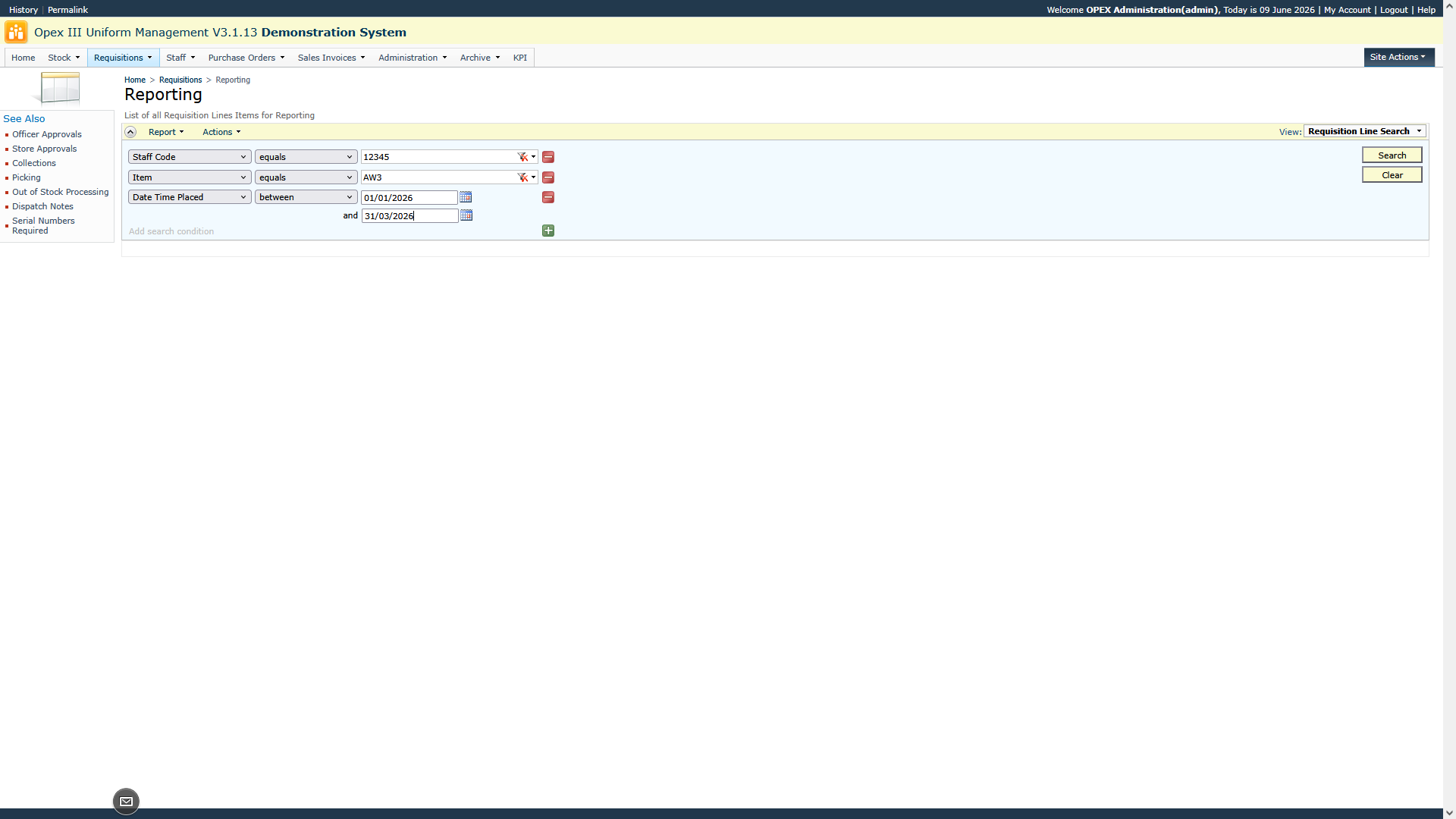
To apply a filter, select the required field from the first drop-down menu. Next, choose the appropriate filter condition from the second drop-down menu (for example, Equals, Is Between, or Begins With). Finally, enter the value you want to search for.
To add additional filters, click the green Add button.
Once you have configured your filters, click Search to display the results.
After the data has been displayed, you can apply further filters if required. Remember to click Search again to refresh the results.
Once the required data is displayed, you can export it as either a PDF or an Excel file.
To download the report as a PDF, click Report and then select PDF Document.
Alternatively, you can export the data to Excel. Instructions on how to download reports into Excel can be found by clicking the link below:
https://datatecnix.freshdesk.com/a/solutions/articles/11000029206