
Go to Requisitions > Reporting.
This screen displays all current requisitions that appear in the main Requisition grid. Archived requisitions are not included.
To view both current and archived requisitions, use one of the following reports:
- Staff > Reporting > Staff History Last Issue
- Staff > Reporting
See https://datatecnix.freshdesk.com/a/solutions/articles/11000137533
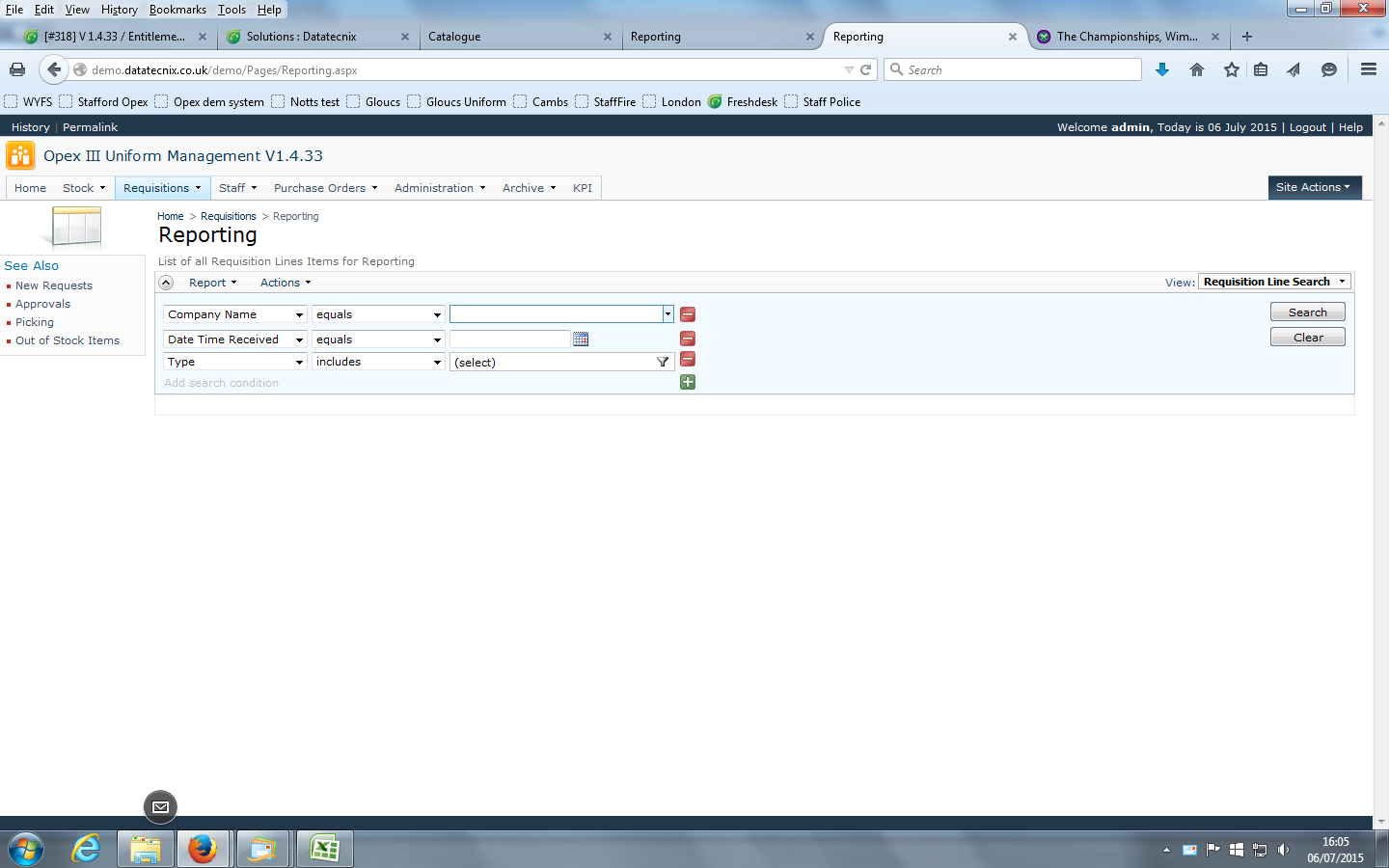
On the right-hand side of the screen, select the View drop-down and choose Requisition Lines All.
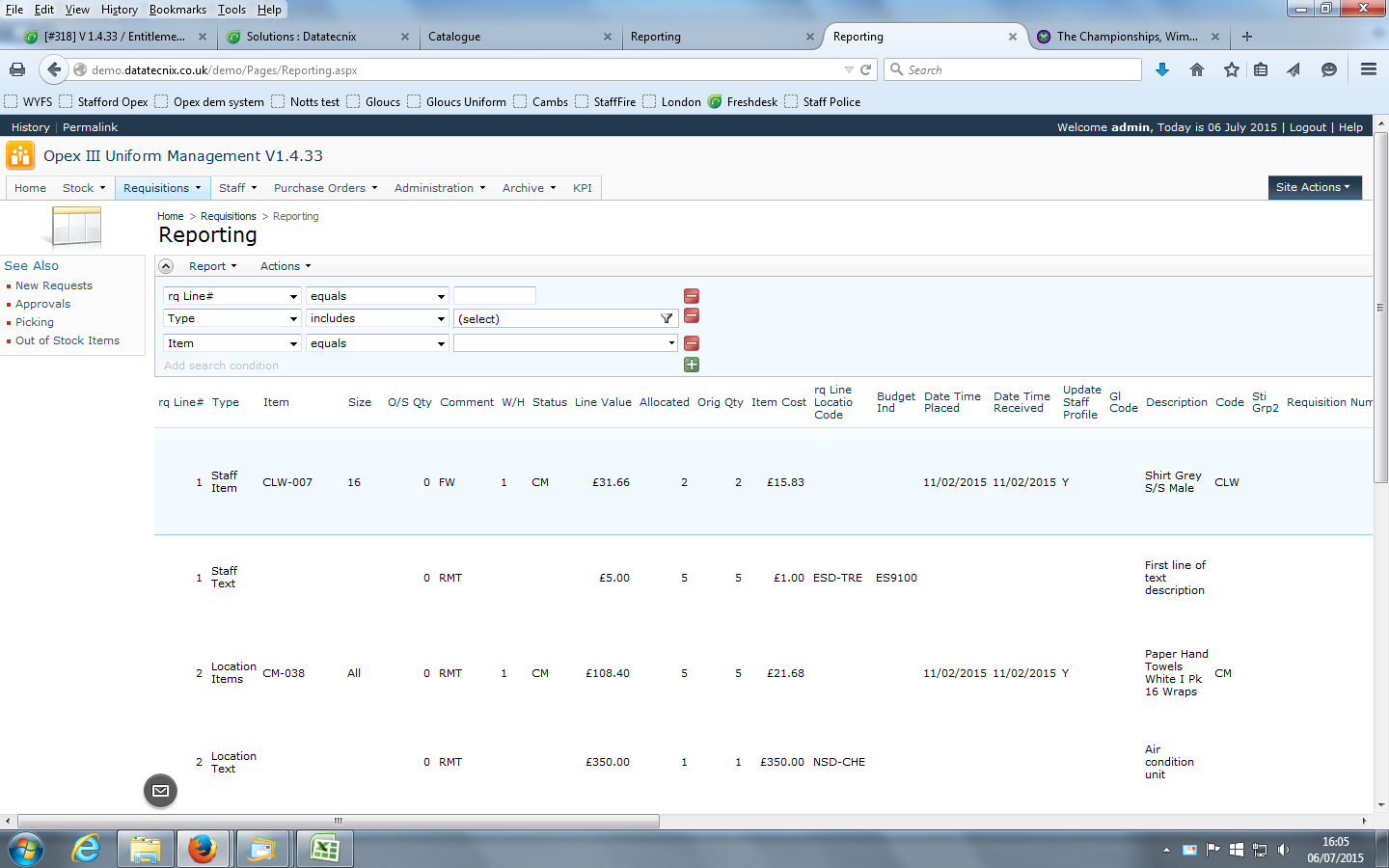
To run a report for a specific stock item, you will need to apply filters to the report fields.
By default, three filter fields are displayed: RQ Line #, Type, and Item. You can change any of these fields by selecting a different option from the drop-down list next to the field name.
To add or remove filter fields, click the green + button to add a filter or the red – button to remove one.
To search for a particular stock item:
- In the Item filter row, select Equals from the drop-down list.
- Enter the required item code in the value field.
- Click Search to run the report.
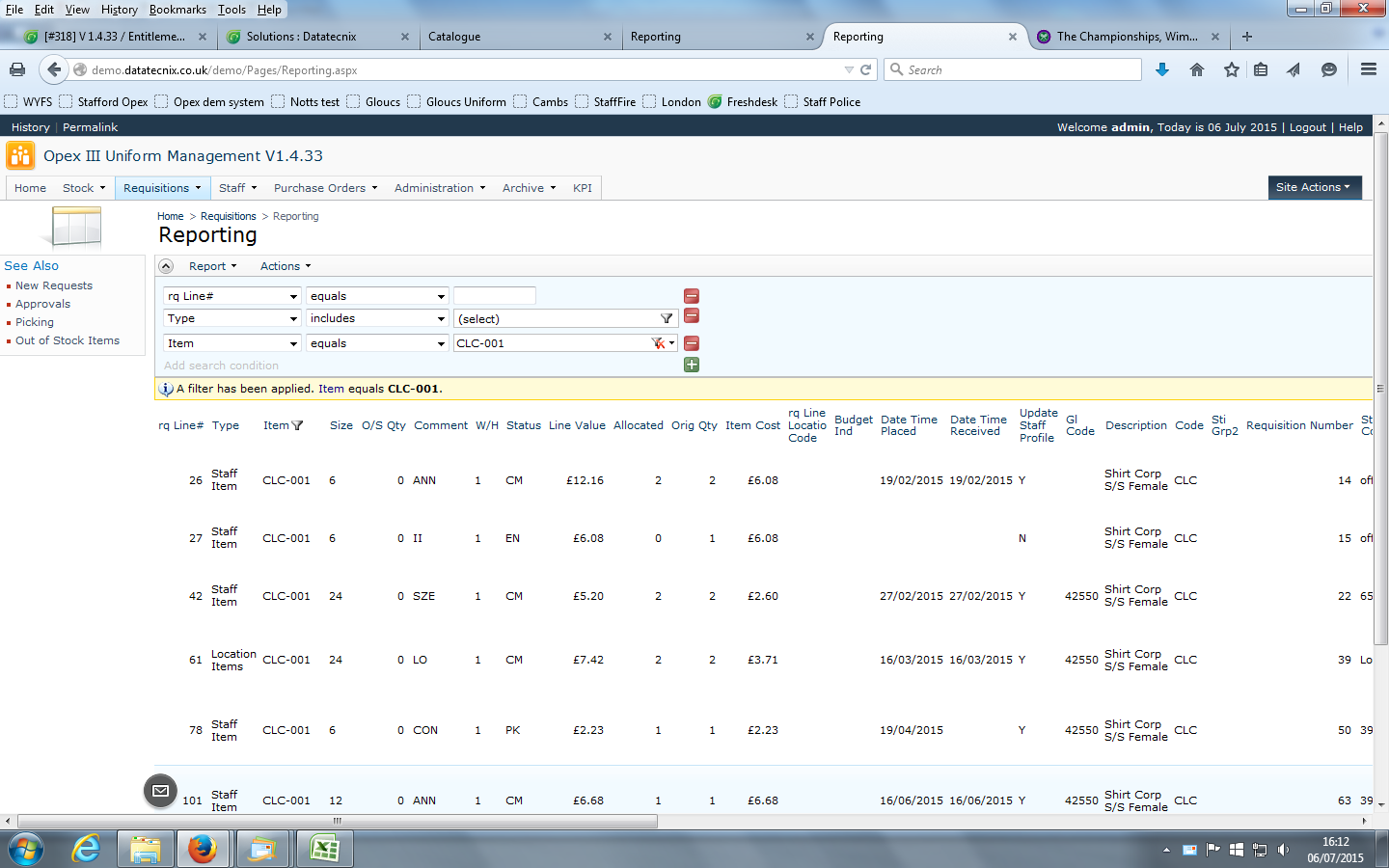
To display only requisition lines that have been issued, add a filter for the Status field with a value of CM.
To display requisition lines that have been both issued and returned, change the Status filter to Includes, then select both CM and RT as the status values.
Click Search to display requisition lines with either a CM (Issued) or RT (Returned) status.
Once the required data is displayed, you can export the report in a variety of formats, including Microsoft Excel and PDF.
For instructions on exporting data to Excel, refer to the following article:
The Requisition Reporting screen can also be used to generate a range of other reports. Select a different option from the View drop-down list to display information such as Out of Stock Line Items, Lines Requiring Approval, Serial Numbers Required and other requisition-related views.